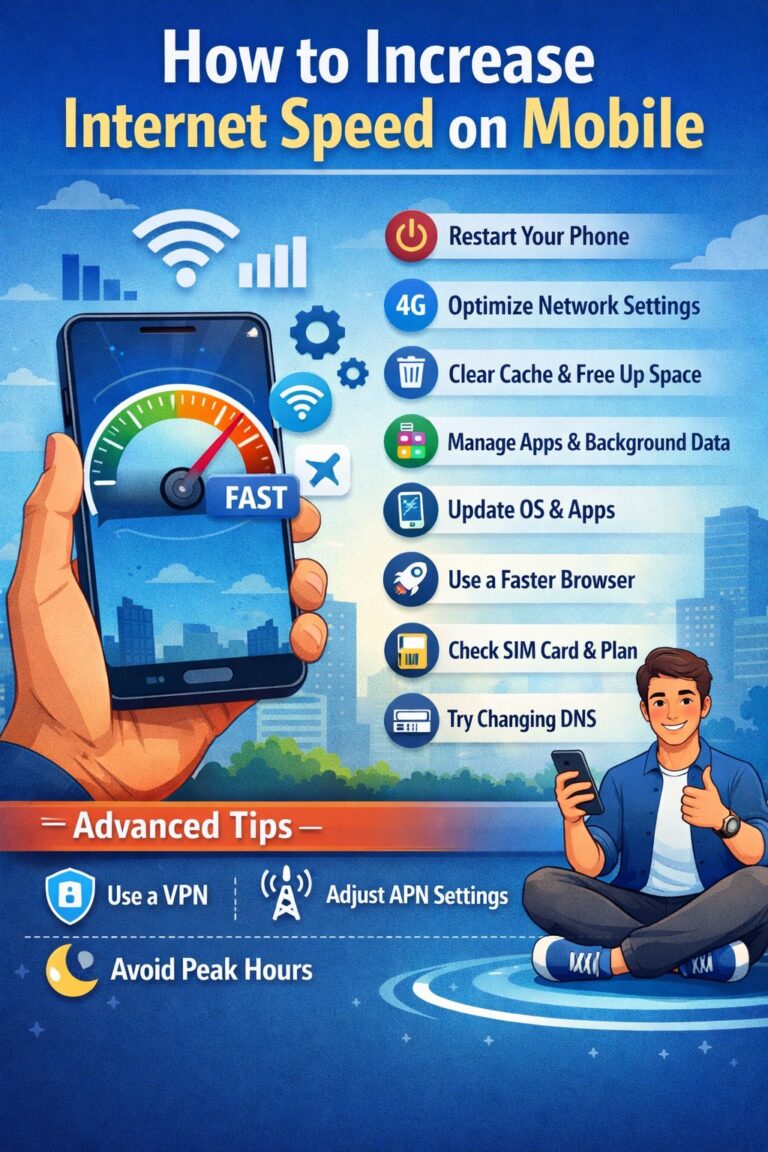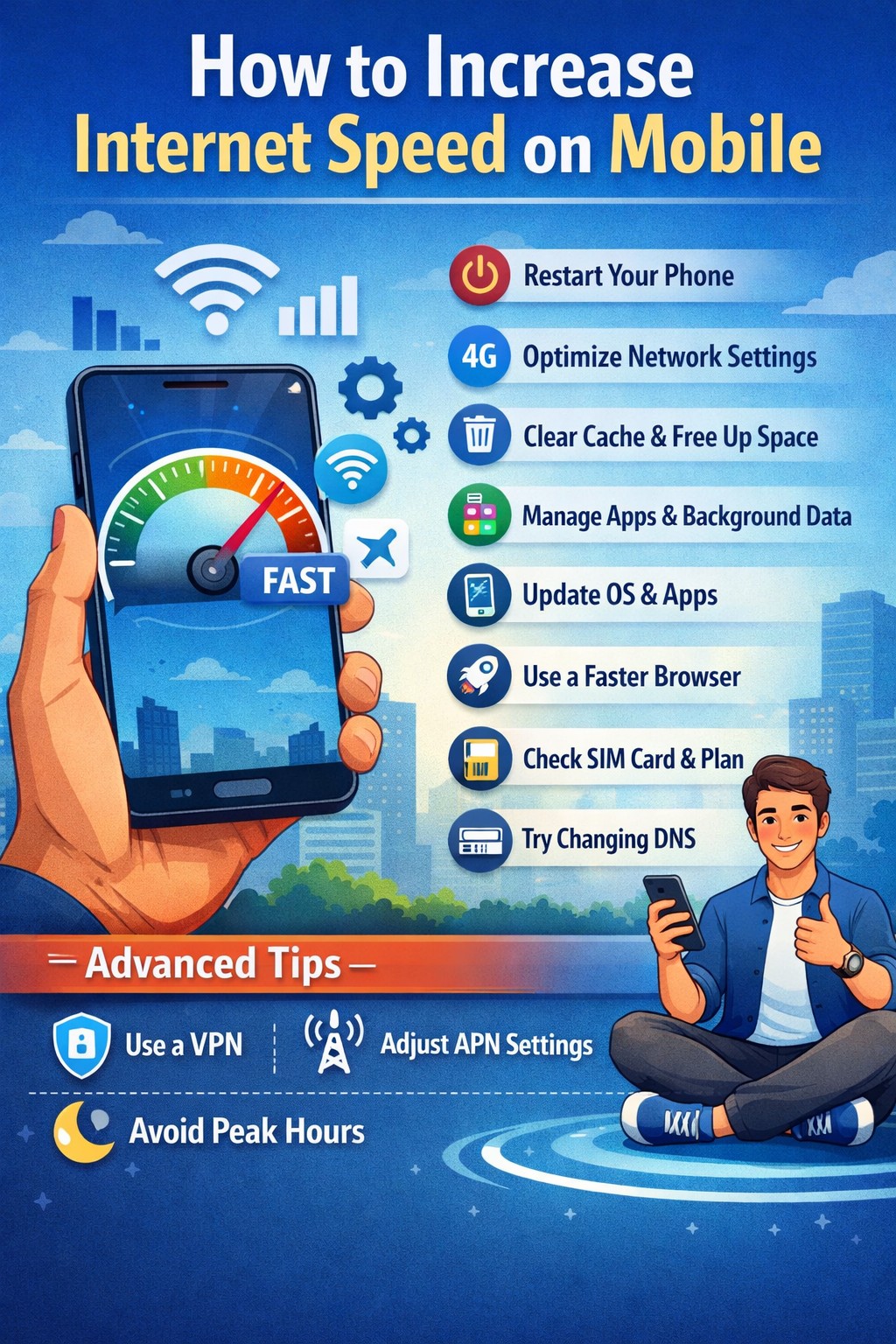
how to increase internet speed on mobile
Introduction: how to increase internet speed on mobile
In today’s fast-moving digital world, slow internet on your mobile phone can feel incredibly frustrating. Whether you’re trying to watch videos, attend online meetings, scroll through social media, or download files, a sluggish connection can ruin the experience. The good news is that there are many practical ways to improve your mobile internet speed without needing advanced technical skills.
This detailed guide will walk you through everything you need to know about how to increase internet speed on mobile. From basic fixes to advanced tweaks, you’ll find clear explanations, real-life examples, and actionable tips that actually work.
Table of Contents
Understanding Why Mobile Internet Speed Becomes Slow
Before jumping into solutions, it’s important to understand why your mobile internet slows down in the first place. When you know the cause, fixing the problem becomes much easier.
Network Congestion
One of the most common reasons is network congestion. When too many users are connected to the same network tower at the same time—especially during peak hours—your speed naturally drops. This usually happens in crowded areas like markets, offices, or public events.
Weak Signal Strength
If you are in a location with poor signal strength—like inside buildings, basements, or remote areas—your mobile struggles to maintain a strong connection. Weak signals directly affect speed and stability.
Background Apps Using Data
Many apps continue to use data in the background even when you’re not actively using them. This can consume bandwidth and slow down your internet speed.
Outdated Software or Settings
Old operating systems or incorrect network settings can also impact performance. Updates often include improvements for network handling and speed optimization.
Data Limit Restrictions
If you’re using a limited data plan, your internet service provider may reduce your speed after you cross a certain limit.
Check Your Internet Speed First
Before trying to fix anything, it’s important to know your current internet speed. This helps you understand whether the issue is minor or serious.
You can use apps or websites like Speedtest to measure:
- Download speed
- Upload speed
- Ping (latency)
If your speed is significantly lower than what your plan offers, then you should start applying the fixes below.
Simple Ways to Increase Internet Speed on Mobile
Let’s begin with the easiest and most effective methods.
Restart Your Phone
This may sound basic, but restarting your phone clears temporary glitches and refreshes network connections. Many users notice instant improvement after a simple restart.
Turn Airplane Mode On and Off
Switching airplane mode on for 10–15 seconds and then turning it off forces your phone to reconnect to the network. This can improve signal strength and speed.
Move to a Better Location
If you’re indoors or in a low-signal area, try moving closer to a window or stepping outside. Even a small change in position can significantly improve signal quality.
Optimize Network Settings
Your mobile network settings play a major role in determining internet speed.
Switch Between Network Modes
Most smartphones allow you to choose between:
- 2G
- 3G
- 4G
- 5G
If your phone is stuck on a slower network, manually switch to a faster one. For example, if you have a 4G plan, ensure your device is set to 4G/LTE mode.
Reset Network Settings
Sometimes, incorrect or corrupted settings can slow down your internet. Resetting network settings can fix this issue.
This will:
- Remove saved Wi-Fi networks
- Reset mobile data settings
- Refresh connection configurations
Choose the Right Network Operator
If your phone is set to automatic network selection, it might not always connect to the fastest available tower. Manually selecting your network operator can sometimes improve speed.
Manage Apps and Data Usage
Your apps can silently consume a large portion of your internet speed.
Close Background Apps
Apps running in the background continue to use data. Close unused apps to free up bandwidth.
Restrict Background Data
You can limit data usage for specific apps by:
- Going to settings
- Selecting data usage
- Restricting background data for heavy apps
Uninstall Unnecessary Apps
Unused apps not only take up storage but may also run background processes that slow down your internet.
Clear Cache and Free Up Storage
Over time, apps collect cache data that can slow down your phone’s performance, including internet speed.
Clear App Cache
Clearing cache helps:
- Remove temporary files
- Improve app performance
- Reduce lag
Free Up Storage Space
If your phone storage is almost full, it can affect overall performance, including internet speed. Delete unnecessary files, videos, and apps.
Update Your Device and Apps
Keeping your phone updated is crucial for maintaining good internet speed.
Update Operating System
Software updates often include:
- Bug fixes
- Performance improvements
- Network optimization
Update Apps Regularly
Outdated apps may not work efficiently with newer networks, causing slow speeds.
Use a Faster Browser
Sometimes, the browser you use can affect your browsing speed.
Switch to Lightweight Browsers
Browsers like:
- Google Chrome (Lite mode)
- Opera Mini
are optimized for faster performance and reduced data usage.
Enable Data Saver or Lite Modes
Many phones and apps offer data-saving features.
Data Saver Mode
This feature reduces background data usage and prioritizes active apps, improving speed.
Lite Versions of Apps
Use lighter versions of apps such as:
- Facebook Lite
- YouTube Go
These apps consume less data and work faster on slower networks.
Improve Wi-Fi Speed on Mobile
If you are using Wi-Fi instead of mobile data, these tips can help.
Stay Close to the Router
The closer you are to the Wi-Fi router, the stronger the signal and the faster the speed.
Restart Your Router
Just like your phone, routers also benefit from occasional restarts. This refreshes the connection and improves speed.
Limit Connected Devices
Too many devices connected to the same Wi-Fi network can slow down speed. Disconnect unused devices.
Advanced Tips to Boost Mobile Internet Speed
If basic methods don’t work, try these advanced techniques.
Change DNS Settings
Switching to a faster DNS server can improve browsing speed.
Popular options include:
- Google DNS
- Cloudflare DNS
These can reduce loading time for websites.
Use a VPN Carefully
A VPN can sometimes improve speed by bypassing network restrictions. However, in many cases, it may slow down your connection. Choose a high-quality VPN if needed.
Update APN Settings
Access Point Name (APN) settings control how your phone connects to the internet.
Updating APN settings according to your network provider can improve speed and connectivity.
Check Your SIM Card and Plan
Sometimes the issue is not your phone but your SIM card or plan.
Replace Old SIM Cards
Older SIM cards may not support newer technologies like 4G or 5G properly. Replacing your SIM can improve speed.
Upgrade Your Data Plan
If your current plan has limited speed or data, upgrading to a better plan can make a big difference.
Avoid Peak Usage Hours
Internet speed often slows down during peak times when many users are online.
Best Time to Use Internet
Try using data-heavy apps during:
- Early morning
- Late night
These times usually have less network congestion.
Keep Your Phone Cool
Overheating can affect your phone’s performance, including internet speed.
Avoid Excessive Heat
- Don’t use your phone while charging
- Keep it away from direct sunlight
- Close heavy apps
A cooler phone performs better and maintains stable internet speed.
Use External Tools and Apps
Some apps are designed to optimize internet speed.
Network Booster Apps
These apps can:
- Clear background processes
- Optimize network usage
- Improve performance
However, use them carefully and avoid untrusted apps.
Common Mistakes That Slow Down Mobile Internet
Many users unknowingly make mistakes that affect speed.
Ignoring Updates
Skipping updates can leave your phone running inefficient software.
Using Too Many Widgets
Widgets constantly refresh data, consuming bandwidth.
Keeping Too Many Tabs Open
Multiple browser tabs use more data and slow down performance.
Practical Example: Fixing Slow Internet Step by Step
Let’s say your mobile internet suddenly becomes slow.
Here’s what you can do:
- Restart your phone
- Turn airplane mode on/off
- Check signal strength
- Close background apps
- Clear cache
- Switch network mode to 4G/5G
- Test speed again
In most cases, this process solves the problem.
Conclusion
Improving mobile internet speed doesn’t always require technical expertise or expensive solutions. Most of the time, simple steps like restarting your device, managing apps, or adjusting settings can make a noticeable difference.
The key is to understand what’s causing the slowdown and apply the right fix. Whether it’s network congestion, weak signals, or background apps, each issue has a practical solution.
About the Author